Multiplayer and Rooms Guide: Lobby Codes, Regions & Error Fixes
Complete guide to multiplayer lobbies, 6-character room code sessions, region selection, and joining errors in Fart Together.
Multiplayer and Rooms Guide: Lobby Codes, Regions & Error Fixes
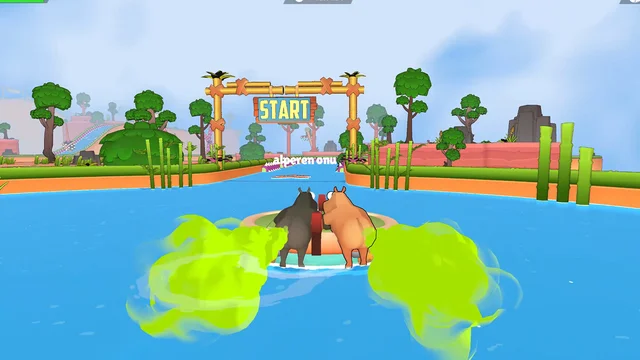
Multiplayer in Fart Together supports 2 to 4 players across online sessions. Matchmaking provides “online co-op only (no local co-op on one PC in the demo)”. Room access relies on a 6-character room code from alphabet ABCDEFGHJKLMNPRSTUVYZ23456789 (typedCodeUppercased) for connecting with friends.
For basic keyboard and steering controls once inside the raft, see the beginner overview.
Creating and Joining Lobbies with Room Codes
To host a match, the player selects “CREATE ROOM” from the main menu. Hosting automatically produces a 6-character room code for the session. The host can share the code directly or click “INVITE FRIENDS” to send Steam invitations.
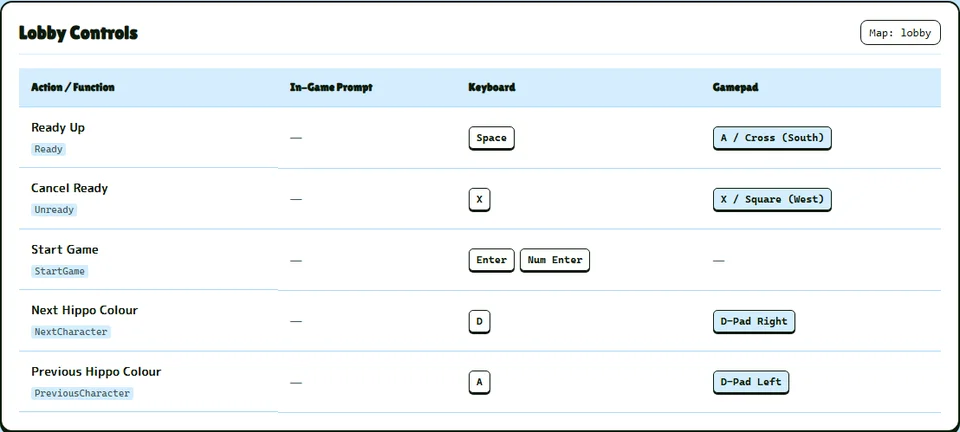
Entering players select “JOIN ROOM” from the main menu to connect to the session. Inside the lobby,  Hippos choose tint by pressing A / D or D-Pad Left / Right. Players toggle ready using lobby
 Controls by pressing Space or A / Cross (South). Crew members can cancel ready status by pressing X or X / Square (West). Starting a run requires at least 2 players and all players must be ready. Once all crew members show ready status, the host presses Enter to launch Course Mode mode.
Server Regions and Network Infrastructure
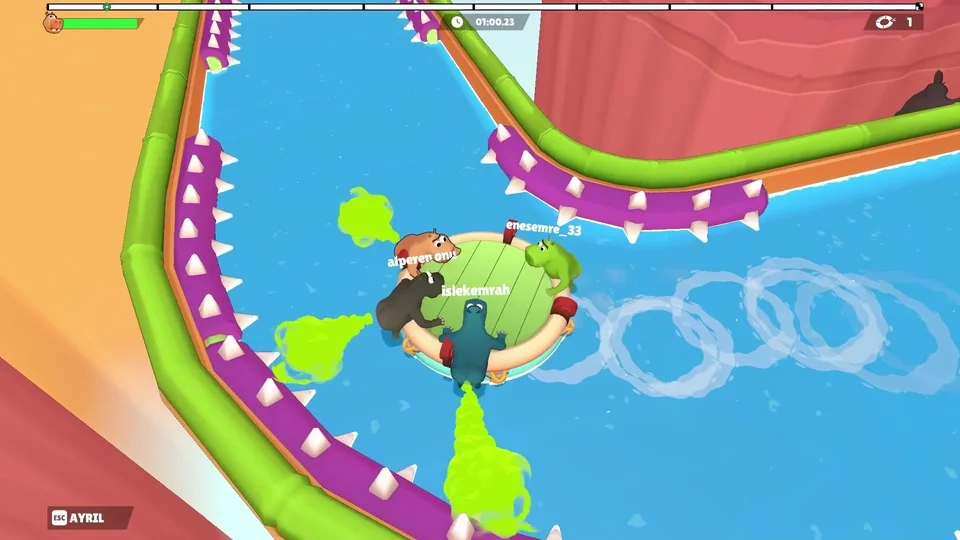
The networking architecture uses FishNet to synchronize raft physics across participants. The demo operates on Steam under demo app ID 5208630. The full game listing is registered under Steam app ID 5117550.
In the network menu, the default routing selection is “Automatic (best ping)”. Community announcements highlighted that “Fart Together has passed 70,000 wishlists on Steam!” If server routing fails, the client advises trying Automatic or another region in Settings.
Common Connection Errors and How to Resolve Them
Entering an invalid code prompts players to check the code and try again. When a room runs another build, the dialogue asks players to update the game and try again. If a joining player holds an updated build, the host must update the game to play together.
When an outdated client attempts entry, the lobby warns that they need to update. Joining a room that already reached maximum capacity triggers the prompt that this room is full. If regional relay servers fail to respond, the client advises trying Automatic or another region in Settings.
When relay traffic is rejected, the connection dialogue requests trying again in a moment. Prolonged packet loss triggers a prompt advising players to check their internet connection and try again.
For specific code troubleshooting steps and error lists, read the room code guide and the error troubleshooting guide.